

SuiteProEval-Ribbon已破控件及實例[精美office2007界面vb控件]
时 间:2007-11-19 14:53:47
作 者:5988143 ID:379 城市:东莞
摘 要:Ribbon已破解控件及實例[精美的類似office2007界面vb控件]
正 文:
[推薦]SuiteProEval.ActiveX -Ribbon已破解控件及實例[精美office2007界面vb控件]
Ribbon Bar Control
Codejock Software's Xtreme RibbonBar provides Windows developers with the latest Microsoft Office 2007 style Ribbon Bar component. No longer will users need to fumble through confusing and boring menus. Xtreme RibbonBar includes enhanced navigation capabilities by grouping menu and toolbar commands into logical blocks that are arranged in tabular format.
Tabular toolbars eliminate the need for numerous toolbars crowded around an application. Menu items can now be elegantly displayed in a toolbar. The contents of a toolbar can be accessed simply by clicking on its tab. Tabbed toolbars are not only easy to use, but they increase the usable view area.
Groups are used to logically organize items in a toolbar. Group captions make it easy to identify items needed. An option button can be used to display a dialog or menu related to a group. Just about any type of item can be added to groups in the toolbar.
Advanced smart layout abilities ensure that the Ribbon Bar makes the most efficient use of the available space. Smart layout allows each item to have multiple image sizes. The smart layout will display the largest images when enough room is available and automatically display the smaller icons when space is tight. When space is abundant, large images with item captions are displayed, if space is limited, then only small icons with no captions are displayed. Items are always only a few clicks away, groups with insufficient space are displayed as a popup button which displays the entire group as a popup. Xtreme RibbonBar is always adapting to its environment to provide a perfect fit.
Xtreme CommandBars Ribbon Bar Control

Ribbon Groups
Groups are used to logically organize items in a Ribbon Bar. Group captions make it easy to identify what the items in a group are related to. Just about any type of item can be added to groups in the toolbar.
Ribbon Groups

Ribbon Group Option Button
Option buttons can be added to a ribbon group's caption. Typically, when an option button is pressed a dialog should be displayed that is related to the controls in the group, but you can perform any action you wish such as displaying a popup menu.
Group Option Button

Smart Layout
Advanced smart layout abilities ensure that the Ribbon Bar makes the most efficient use of the available space. Smart layout allows each item to have multiple image sizes. The smart layout will display the largest images when enough room is available and automatically display the smaller icons when space is tight. When space is abundant, large images with item captions are displayed, if space is limited, then only small icons with no captions are displayed. Items are always only a few clicks away, groups with insufficient space are displayed as a popup button which displays the entire group as a popup. Xtreme RibbonBar is always adapting to its environment to provide a perfect fit.
Ribbon Bar Smart Layout

Luna, Obsidian and Aqua Themes
The Ribbon Bar includes three different themes. The themes included are the Luna (blue) theme, Black (Obsidian) theme, the most recent
Access软件网QQ交流群 (群号:54525238) Access源码网店
Codejock Software's Xtreme RibbonBar provides Windows developers with the latest Microsoft Office 2007 style Ribbon Bar component. No longer will users need to fumble through confusing and boring menus. Xtreme RibbonBar includes enhanced navigation capabilities by grouping menu and toolbar commands into logical blocks that are arranged in tabular format.
Tabular toolbars eliminate the need for numerous toolbars crowded around an application. Menu items can now be elegantly displayed in a toolbar. The contents of a toolbar can be accessed simply by clicking on its tab. Tabbed toolbars are not only easy to use, but they increase the usable view area.
Groups are used to logically organize items in a toolbar. Group captions make it easy to identify items needed. An option button can be used to display a dialog or menu related to a group. Just about any type of item can be added to groups in the toolbar.
Advanced smart layout abilities ensure that the Ribbon Bar makes the most efficient use of the available space. Smart layout allows each item to have multiple image sizes. The smart layout will display the largest images when enough room is available and automatically display the smaller icons when space is tight. When space is abundant, large images with item captions are displayed, if space is limited, then only small icons with no captions are displayed. Items are always only a few clicks away, groups with insufficient space are displayed as a popup button which displays the entire group as a popup. Xtreme RibbonBar is always adapting to its environment to provide a perfect fit.
Xtreme CommandBars Ribbon Bar Control
Ribbon Groups
Groups are used to logically organize items in a Ribbon Bar. Group captions make it easy to identify what the items in a group are related to. Just about any type of item can be added to groups in the toolbar.
Ribbon Groups
Ribbon Group Option Button
Option buttons can be added to a ribbon group's caption. Typically, when an option button is pressed a dialog should be displayed that is related to the controls in the group, but you can perform any action you wish such as displaying a popup menu.
Group Option Button
Smart Layout
Advanced smart layout abilities ensure that the Ribbon Bar makes the most efficient use of the available space. Smart layout allows each item to have multiple image sizes. The smart layout will display the largest images when enough room is available and automatically display the smaller icons when space is tight. When space is abundant, large images with item captions are displayed, if space is limited, then only small icons with no captions are displayed. Items are always only a few clicks away, groups with insufficient space are displayed as a popup button which displays the entire group as a popup. Xtreme RibbonBar is always adapting to its environment to provide a perfect fit.
Ribbon Bar Smart Layout
Luna, Obsidian and Aqua Themes
The Ribbon Bar includes three different themes. The themes included are the Luna (blue) theme, Black (Obsidian) theme, the most recent
Access软件网QQ交流群 (群号:54525238) Access源码网店
相关文章:
 值得收藏的Ribbon idMso --access 2007 【一鸣 2009/8/15】 access2007功能区开发-clsRibbon类 【朱亦文 2009/9/3】 access2007功能区开发-clsRibbonControl类 【朱亦文 2009/9/4】 access2007功能区开发-modRibbonPublic模块 【朱亦文 2009/9/7】 access2007功能区开发-modRibbonPrivate模块 【朱亦文 2009/9/8】 推荐 access 2007 /access 2010 Ribbon XML 编程资料 【andymark 2009/9/30】 Access Ribbons教程 【andymark 2013/1/8】 VB控件教程大全 【麥田 2013/4/12】 Access Ribbon 中 imageMso 图标 大全 【羽扇子君 2014/5/28】
Access网店:
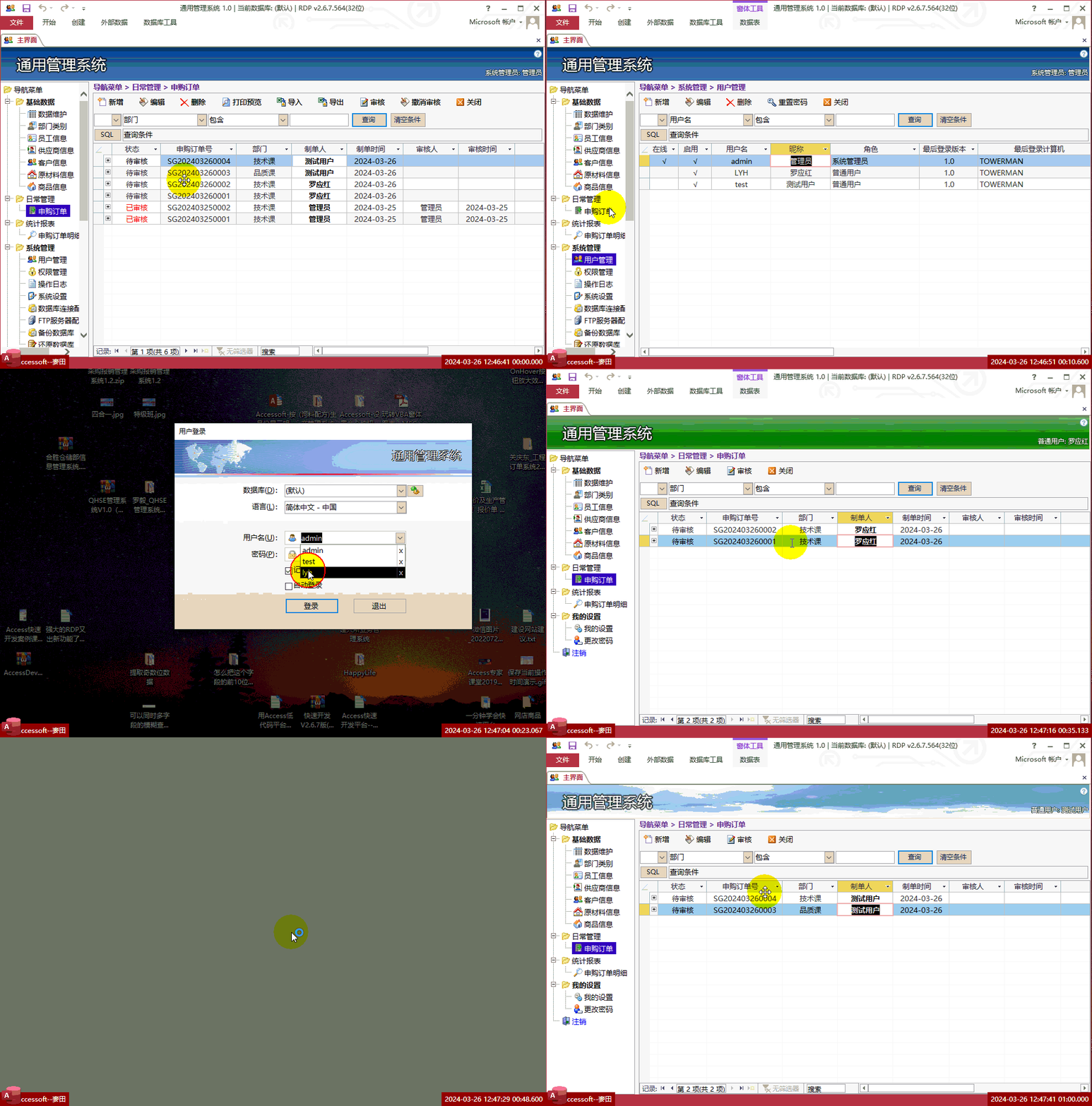
Access快速开发平台--操作员只能查看自己的数据,管理员可以查看所有数据
价格:¥500 元.gif)
Access快速开发平台--打印预览选中的多项记录示例
价格:¥100 元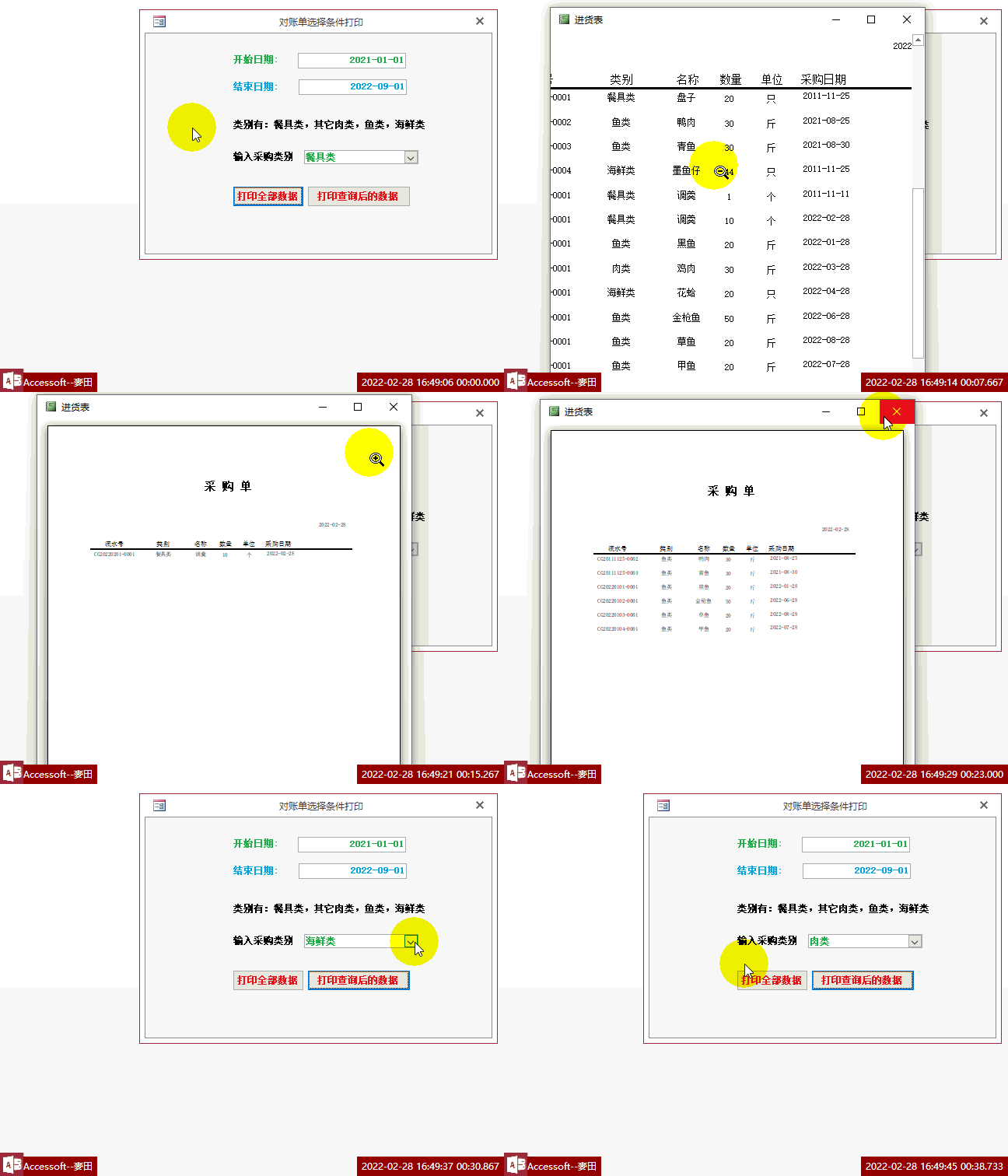
【Access报表】打印查询结果到报表,多条件查询符合条件的记录并用报表打印
价格:¥50 元
常见问答:
技术分类:
源码示例
- 【源码QQ群号19834647...(12.17)
- Access怎么按每个年度里面...(07.03)
- Access自定义消息盒Msg...(04.28)
- Access怎么按每个月份里面...(03.09)
- Access怎么按季度来统计人...(02.26)
- Access怎么按年龄段来统计...(01.26)
- 【Access高效办公】上一年...(12.29)
- 用Access连续窗体制作的树...(11.03)
- 【Access高效办公】上一年...(10.30)
- Access制作的RGB转CM...(09.22)

学习心得

最新文章
- Access快速开发平台企业版--...(07.15)
- 运行时错误3052文件共享锁定数溢...(07.10)
- Access怎么按每个年度里面的周...(07.03)
- Access数据库备份不求人——用...(06.29)
- 如何更改快速开发平台上的窗体按钮(06.20)
- 用Excel模仿Access开发《...(06.17)
- Access快速开发平台导航箭头改...(06.15)
- Access2024官方下载,Ac...(06.11)
- Access快速开发平台--后台A...(06.03)
- 将bit字段的Null值更新为Fa...(06.01)
Access软件网 版权所有 CopyRight 2006-2025
上海盟威软件有限公司 地址:上海市闵行区春申路1955号13幢101室
沪ICP备12024966号-4
沪公网安备31010902003234号
